
Free Excel Monthly Attendance Tracker Template
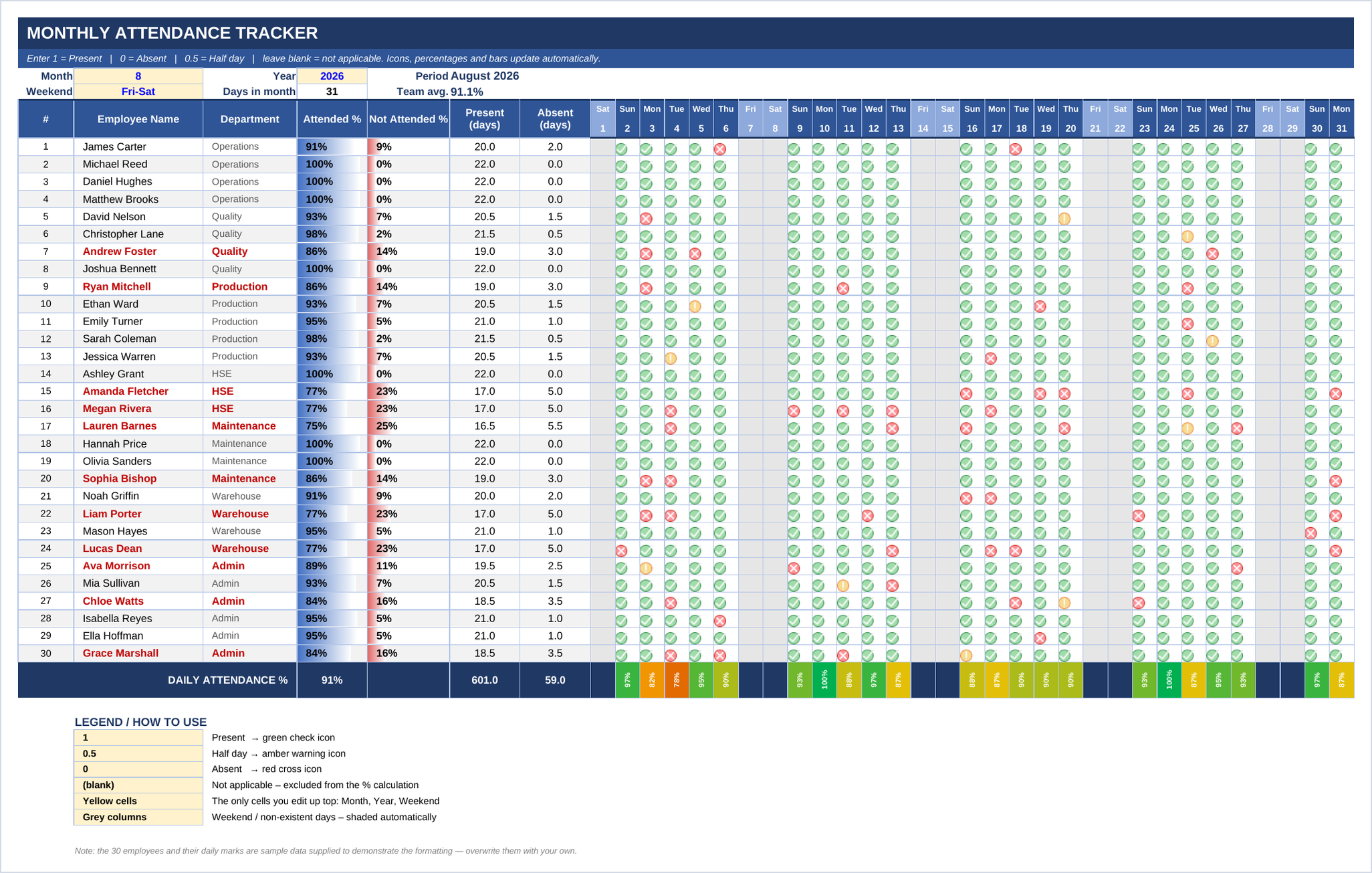
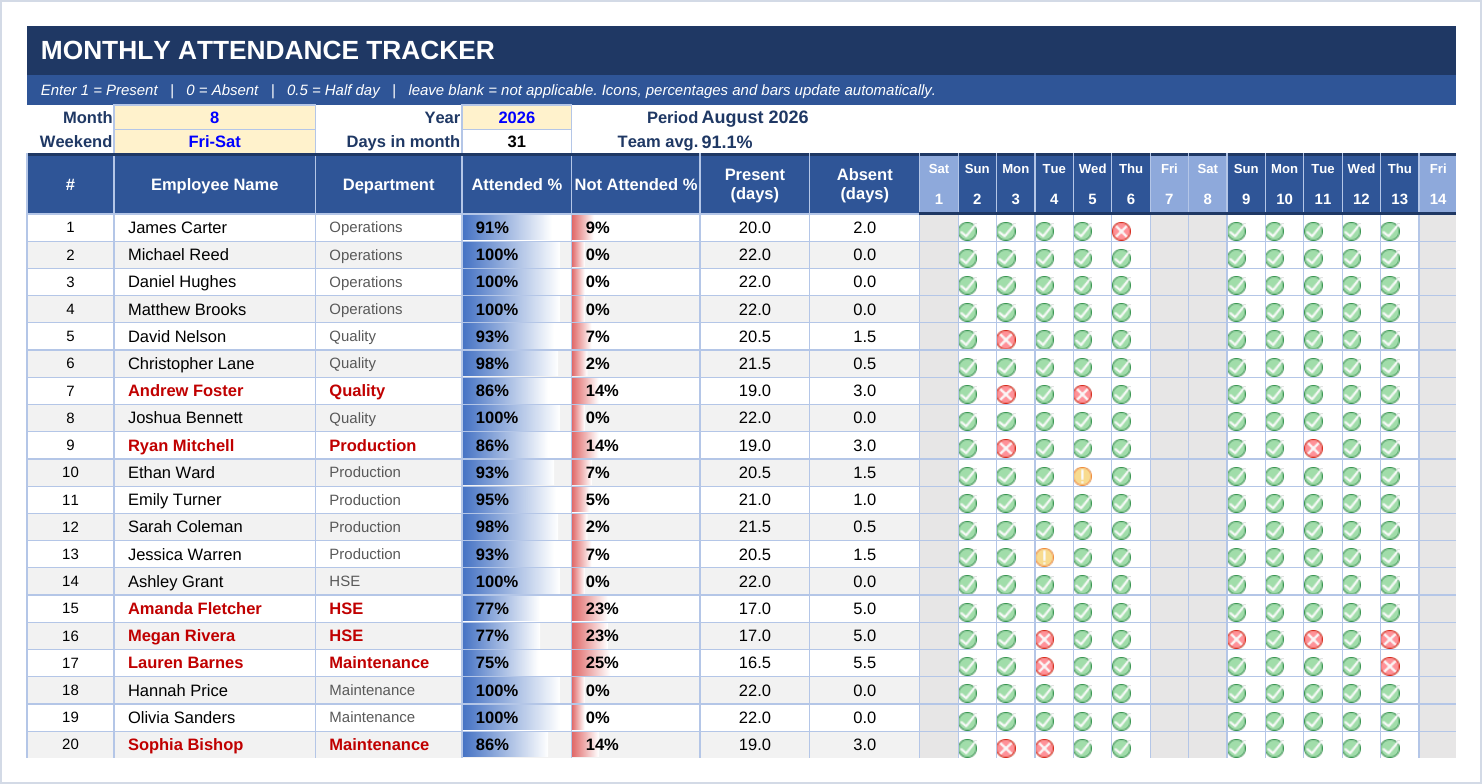
A free Excel template for tracking monthly employee attendance: type only 1, 0 or 0.5 and the cell turns into a colour-coded icon while attendance rates, totals and a monthly summary calculate themselves — no macros, no add-ins.
How many times have you opened an attendance file in Excel and found yourself staring at a sea of numbers — zeros and ones, row after row, thirty names across thirty-one columns? The data is correct, but it tells you nothing. To find out who was absent most this month, or which day had the worst turnout, you have to read every cell with your eyes and do the arithmetic in your head. Five minutes later you close the file without making a single decision.
The problem is not the data — it is the way the data is presented. And the fix needs no macros, no Power BI and no subscription to anything; it only needs the smart use of four tools that have been sitting inside Excel for years: Formulas, Conditional Formatting, Icon Sets and Data Bars.
In this post I am sharing a ready-made Excel template built on exactly that idea: a monthly attendance tracker that works the moment you open it. You type a single number per employee per day, that number turns into a colour-coded signal in front of you, and the percentages, totals and trends calculate themselves. The file is free and available for download at the end of this article.
Why this tracker is different from every other attendance sheet
Most attendance files ask you to type "Present" or "Absent", or to place a manual mark, and then work out the result at the end of the month on a calculator. This template runs on a completely different logic: you enter very simple raw data, and the file does the reading, the analysis and the presentation.
- One second per entry: no typing, no copy-paste — a single number (1, 0 or 0.5) per cell.
- Instant visual reading: the number disappears and a colour-coded icon takes its place, so you read a whole employee row at a glance.
- Fully automatic calculation: attendance rate, absence rate, days present, days absent and the team average — all live formulas that update instantly.
- Adapts to any month: change one cell for the month and every date and weekday name changes with it, and days that do not exist (30 and 31 in February) are excluded automatically.
- Knows your weekend: set to Friday–Saturday by default, switchable to Saturday–Sunday from a single cell.
What is inside the file
Attendance Tracker sheet
The main daily grid: one row per employee and one column per day of the month, with attendance rate, absence rate and day counts in side columns.
Summary sheet
A ready executive summary: employees tracked, team attendance rate, total days present and absent, perfect-attendance count, and how many people are below the 90% target.
Daily attendance row
A row beneath the grid calculates team attendance for each individual day on a green-amber-red colour scale, so weak days stand out immediately.
Automatic weekend shading
Weekend columns and days that do not exist in the month are shaded grey and excluded from the percentage calculation without any input from you.
Built-in legend
A small table at the bottom explains what every number and every icon means, so any colleague can use the file without you explaining it.
How to use the template in five minutes
Download and open the file
Grab the blank version from the download links at the end of this article and open it in Excel. No macros to enable, no add-ins to install.
Set the month and year
Type the month number (1 to 12) and the year into the two yellow cells at the top; every date, weekday name and the number of days update automatically.
Choose your weekend
Pick Friday–Saturday or Saturday–Sunday in the weekend cell, and those columns are shaded grey and taken out of the percentage calculation.
Enter employee names and departments
Type names into the Employee Name column and departments beside them. The sheet is set up for thirty employees; to add more, drag the last row down so the formulas and formatting travel with it.
Log attendance daily
1 = present, 0 = absent, 0.5 = half day. Leave the cell blank when the day does not apply (a public holiday, or someone who has not joined yet) so it is excluded from the rate.
Read the result
Nothing else. Percentages, totals and alert icons update live, and the Summary sheet gives you the full month ready to present or print.
The numbers the file works out for you
Note that the percentages are calculated against the days actually entered, not against every day of the month. If you leave a cell blank it is removed from both the numerator and the denominator, so the rate stays fair. That small detail is the difference between a file that unfairly shows a mid-month joiner at 50%, and one that shows their true rate.
Common mistakes to avoid
- Do not type "Present" or a letter instead of the numbers — the formulas only handle numbers, and any text inside the grid breaks the calculation.
- Do not leave an absence cell blank: blank means "not applicable" and is excluded from the rate, while an absence must be entered as zero.
- Do not delete rows or columns inside the grid; to add employees, drag the last row downwards so the formulas and conditional formatting come with it.
- Save a separate copy for each month instead of overwriting the previous one, so you keep a record you can go back to during a review or an audit.
The best tracking file is not the most detailed one — it is the one you can read at a glance and walk away from with a decision.
Download the template for free
The template is available as a direct .xlsx download from the box below, in two versions:
- Attendance_Tracker_Monthly.xlsx — the sample version: thirty employees over a full month, so you can see the finished result the moment you open it.
- MonthlyAttendanceTrackerBlank.xlsx — the blank version: no names, no marks, with every formula, colour and icon still working — start filling it in straight away.
Both run on Excel 2016 and later and on Microsoft 365, and neither needs macros or add-ins enabled.
Downloadable files
NEWNeed a template tailored to your own procedures?
This tracker is an excellent starting point, but every organisation has its own attendance policy and performance indicators. Get in touch and we will adapt the file to your policy and connect it to your monthly reporting and audit requirements.
Contact us